The Problem
I recently rebuild my trusty Lenovo X1 Carbon laptop. As you usually find, a fresh install of Windows 11 meant a leap in performance.
All was good for a couple of weeks, until I started to get problems. It still was working to supply power and the HDMI connection to my external monitor worked, but the USB devices could not be seen.
I also checked with the Lenovo Dock Manager and it could now no longer see the dock.
The Solution
I am not sure why it happened, but the fix was
- Open Device Manager: Press the Windows key + X and select “Device Manager”.
- Show Hidden Devices: Click “View” in the menu bar and select “Show hidden devices”.
- Locate Thunderbolt Controller: Expand “System Devices” and find the “Thunderbolt Controller” entry.
- Uninstall: Right-click on “Thunderbolt Controller” and select “Uninstall device”. In the “Uninstall Device” window, check the box that says “Delete the driver software for this device”.
Once this was done I disconnected the dock and reconnected it, and this dialog appeared
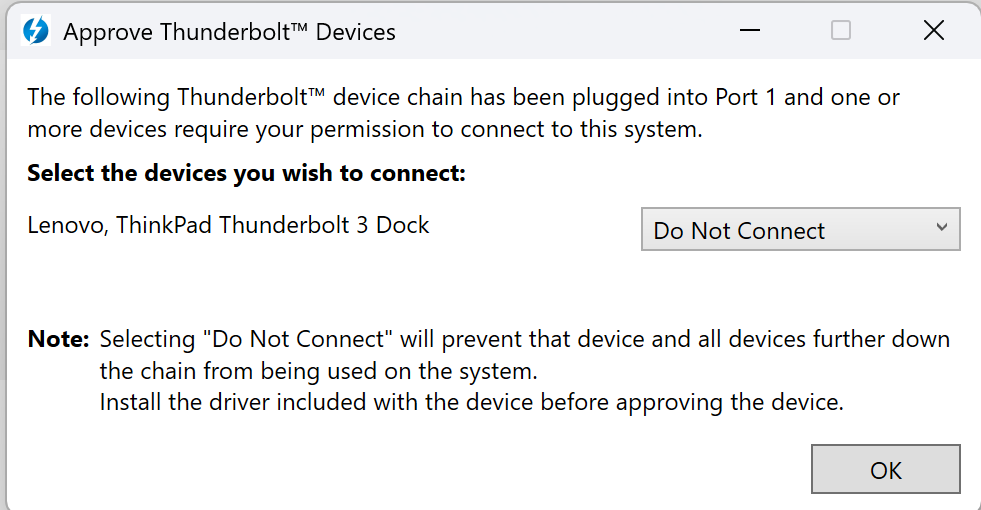
I had to approve access to the dock.
My guess is that somehow this access control setting had got set in the wrong state. I have no idea how, as I was never shown this dialog after the Windows reinstall, but at least it is fixed now
Update 14th July 2026
If this process does not work for you, or you cannot see the Thunderbolt device in the Windows Device Manager, try the following:
- Disconnect your laptop from the dock
- Hold down the laptop power button until your laptop switches off
- Wait a few seconds to make sure it is off
- Switch on the laptop
- When it is booted, connect the dock, there is a good chance all the device and displays connected to the dock will be working
It seems the issue is that Windows 11 reboots/shutdown are not clearing some state that confuses USB-C/Thuderbolt connections. A hard reset of the electronics seems to fix it